Whitelabel Branding: Make SmartlyQ Your Own
Overview
Whitelabel branding lets you replace SmartlyQ's identity with your own, so your clients experience the platform as your product. From your Platform console you control the name, colours, logo, legal pages, and more - a core capability for agencies reselling SmartlyQ.
Where to find it
From the sidebar, open the Platform console (the agency management area), then choose Branding.
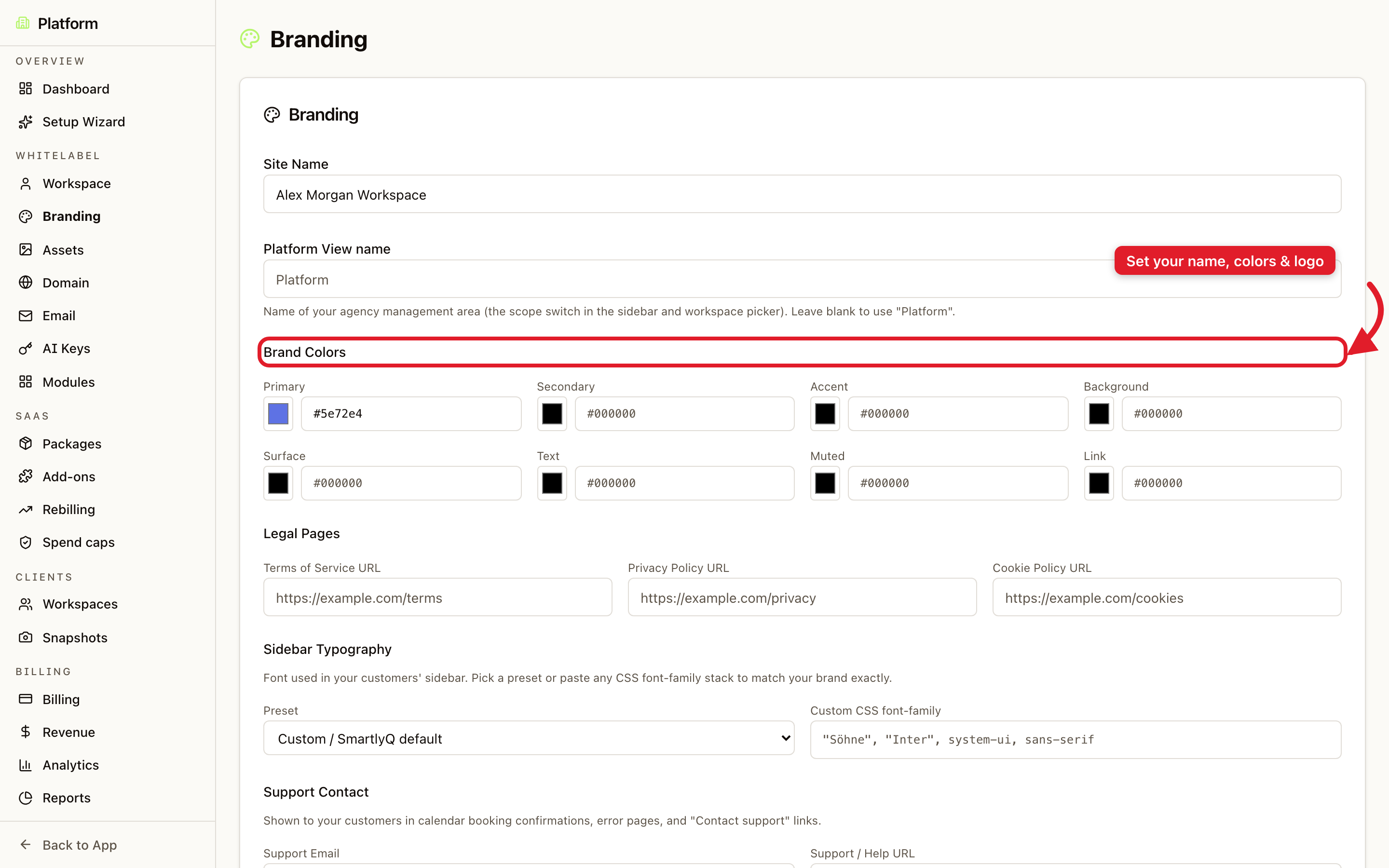
What you can customise
- Site Name - the product name your clients see across the app.
- Platform View name - what your agency management area is called in the sidebar and workspace picker.
- Brand Colors - set your primary, secondary, accent, background, text, and link colours so the interface matches your brand.
- Legal Pages - point Terms of Service, Privacy Policy, and Cookie Policy links to your own URLs.
- Sidebar Typography - choose a font preset or paste a custom CSS font-family to match your brand exactly.
- Support Contact - the support email and help link shown to your customers.
Nearby tabs complete the picture:
- Assets - upload your logo and favicon.
- Domain - serve the platform on your own domain (for example
app.yourbrand.com). - Email - send notifications from your own sending identity.
Tips
- Start with the Setup Wizard if you're configuring whitelabel for the first time - it walks you through each step.
- Match colours and logo first - they make the biggest visual difference for clients.
- Pair branding with a custom domain for a fully seamless, unbranded-to-SmartlyQ experience.