The Agency Platform: Managing Client Workspaces
Overview
The Platform console is your agency command centre. It's where you create and manage client workspaces, invite your team, brand the platform, and track usage across all your clients - everything you need to run SmartlyQ as an agency.
Where to find it
Open the Platform console from the sidebar. You'll land on the agency Dashboard.
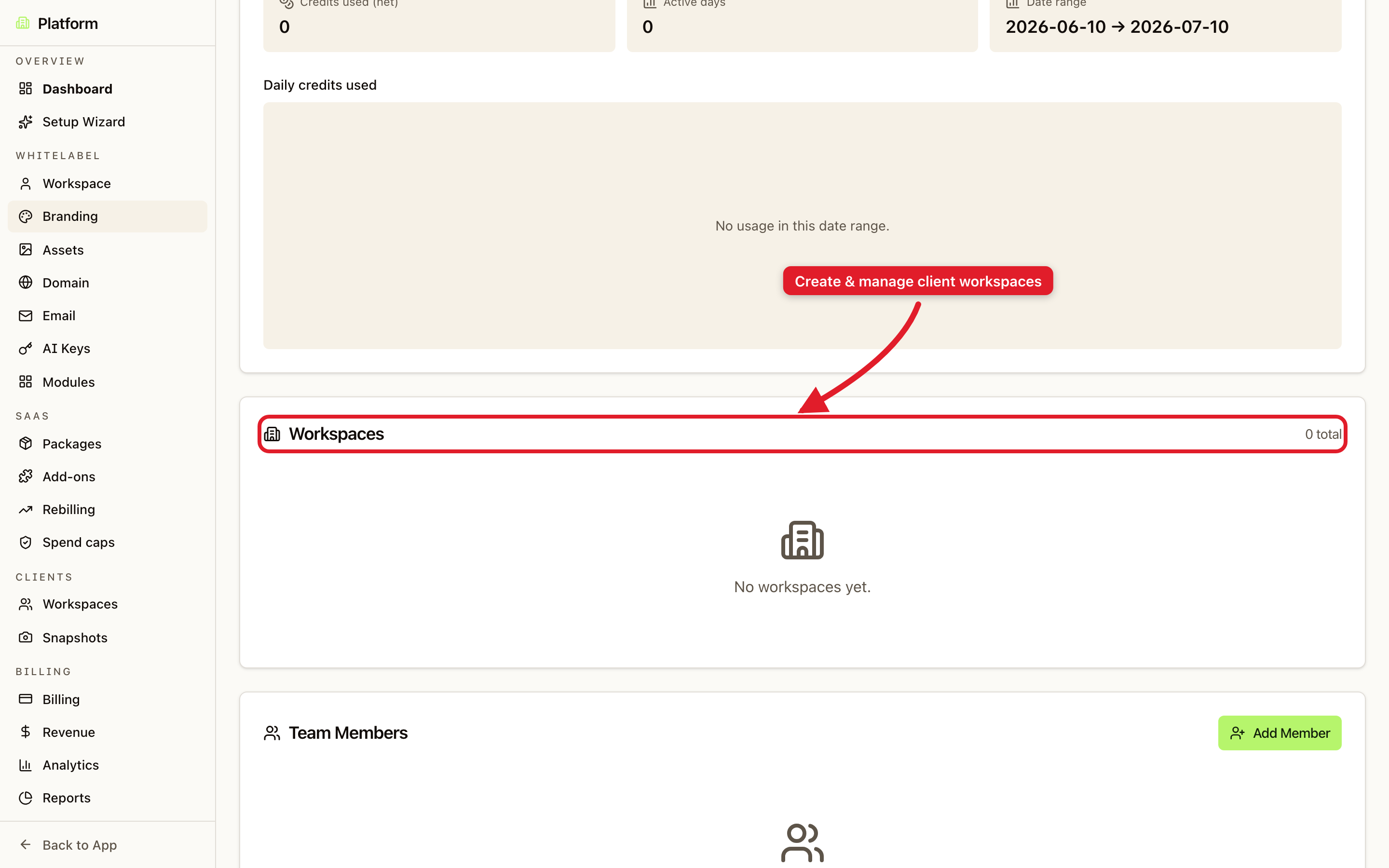
What's on the dashboard
- Usage metrics - credits used, active days, and a date range so you can see activity at a glance.
- Workspaces - every client workspace you manage, with a running total. This is where you create new client workspaces.
- Team Members - the people on your agency team, with an Add Member button to invite more.
Creating a client workspace
- In the Workspaces section, choose to add a new workspace.
- Give it a name (for example, the client's business).
- The new workspace appears in your list, ready to configure and hand over.
Each client workspace is fully isolated, with its own content, members, and settings, while you keep central oversight from the Platform console.
The Platform sections
The left navigation groups everything by area:
- Whitelabel - Workspace, Branding, Assets, Domain, Email, and Modules.
- SaaS - Packages, Add-ons, Rebilling, and Spend caps.
- Clients - Workspaces and Snapshots.
- Billing - Billing, Revenue, Analytics, and Reports.
Tip: Use Snapshots to save a fully configured workspace as a template, then spin up new clients from it in one click.