Inviting Your Team & Managing Roles
Overview
Invite your teammates into a workspace so you can create, review, and publish content together. Each member gets their own login, and you decide what they can do by assigning a role.
Where to find it
Open Settings from the sidebar, then select the My Staff (Members) tab.
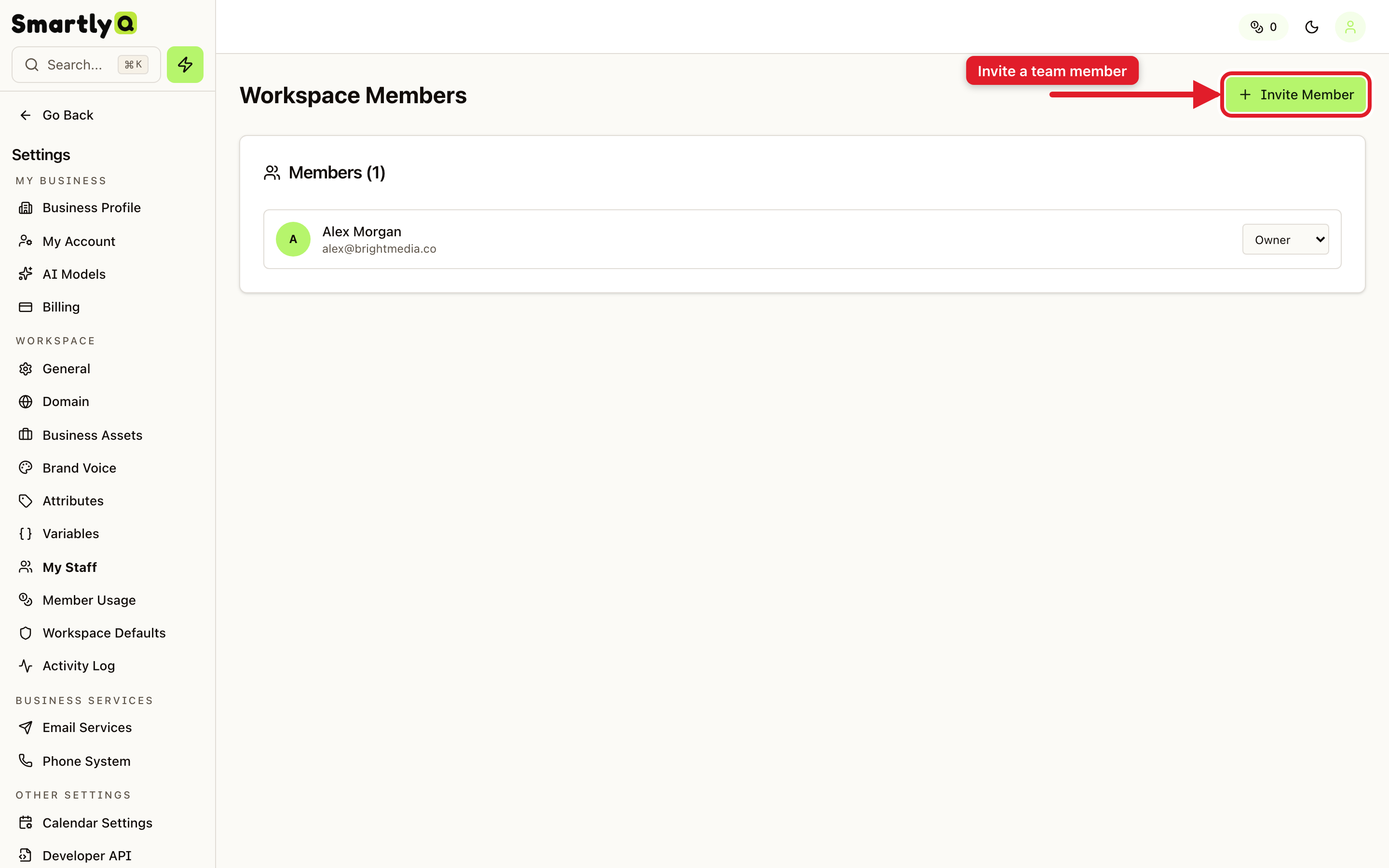
Inviting a team member
- Click Invite Member in the top right.
- Enter the person's email address.
- Choose their role (see below).
- Send the invite - they'll receive an email to join the workspace.
Roles
- Owner - full control of the workspace, including billing and members.
- Member / staff roles - can create and manage content, with access based on the role you assign.
You can change a member's role at any time from the members list, or remove someone who no longer needs access.
Tips
- Invite by email - the person doesn't need an account yet; they'll be guided to create one when they accept.
- Use roles to limit access - give collaborators exactly the permissions they need.
- Combine with spend caps - pair roles with per-member spend caps (in the Member Usage tab) to keep both access and costs under control.