Generating Images with AI
Overview
The Image Generator creates original images from a text description - perfect for social posts, blog headers, ads, and anywhere you need a visual fast. Just describe what you want and SmartlyQ generates it for you.
Where to find it
From the sidebar, open Creative Studio > Image Generator, then click Generate new image to open the image panel.
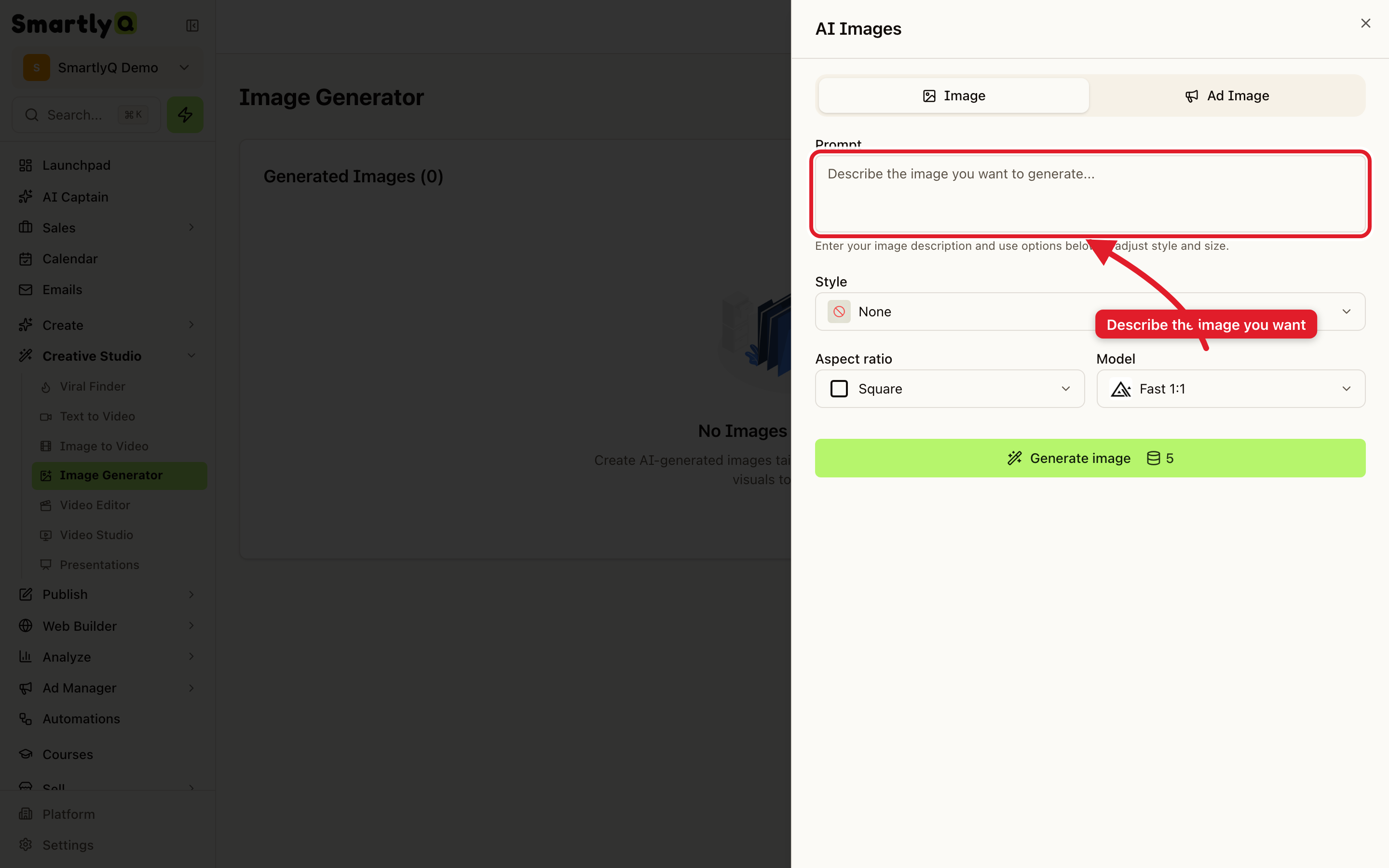
Generating an image
- Choose the type - a standard Image, or an Ad Image optimised for advertising.
- Describe the image in the prompt box - the more specific you are, the better the result (subject, setting, mood, colours, style).
- Pick a Style to steer the look, or leave it as None.
- Set the Aspect ratio - Square, portrait, or landscape, depending on where you'll use it.
- Click Generate image. Each generation uses a few credits, shown on the button.
Your finished images appear in the gallery, ready to download or use across SmartlyQ.
Tips for great prompts
- Be descriptive - "a cosy coffee shop interior at golden hour, warm tones, shallow depth of field" beats "coffee shop".
- Match the aspect ratio to the destination - Square for feed posts, portrait for stories and reels, landscape for blog headers.
- Iterate - if the first result isn't quite right, tweak a few words in the prompt and generate again.