Connecting a Custom Domain
Overview
Connect your own custom domain so your SmartlyQ workspace lives on a web address you control - for example app.yourbrand.com instead of the default. This is a key part of presenting a fully branded experience to your clients and team.
Where to find it
Open Settings from the sidebar, then select the Domain tab.
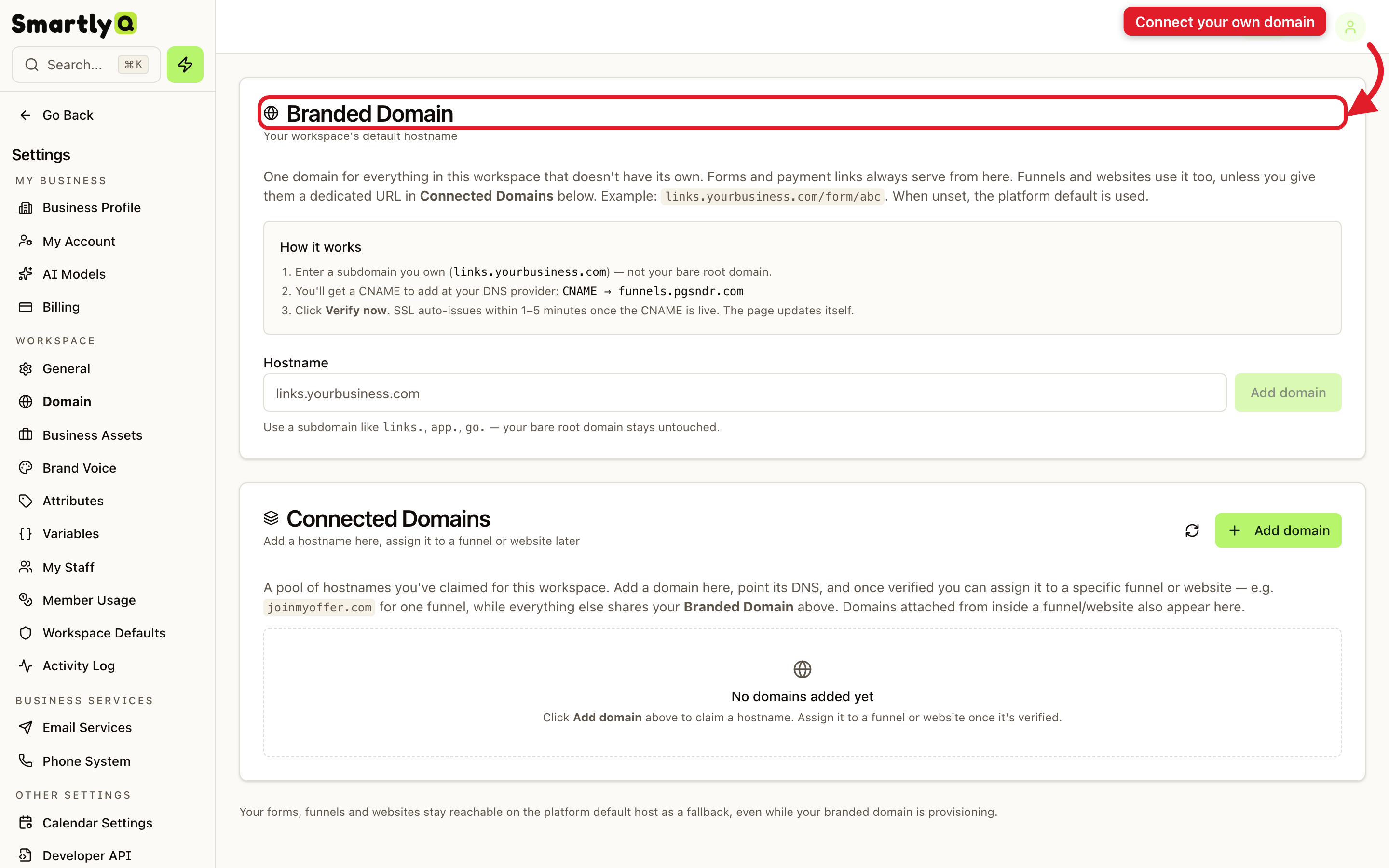
Connecting a domain
- Enter the domain (or subdomain) you want to use, such as
app.yourbrand.com. - SmartlyQ shows you the DNS record to add.
- Add that record with your domain registrar or DNS provider.
- Come back and finish the connection - SmartlyQ verifies the record and issues a secure certificate automatically.
Once verified, your workspace is reachable on your own domain, and it appears in the Connected Domains list.
Tips
- Use a subdomain like
app.orgo.so your main website keeps working normally. - DNS changes can take a little time to propagate - if verification doesn't succeed immediately, wait a few minutes and try again.
- Pair it with whitelabel branding (logo and colours) for a completely branded client experience.